Payments & stored value
Bank transfers & cash
Let customers pay by bank transfer or local QR, confirm the money, and offer cash in store.
Customers pay you directly — to your own bank account, mobile-money wallet or instant-payment ID — and tell you they've paid. Nothing is recorded until someone on your team confirms the money arrived. Zetliq never holds customer money.
Set up your details
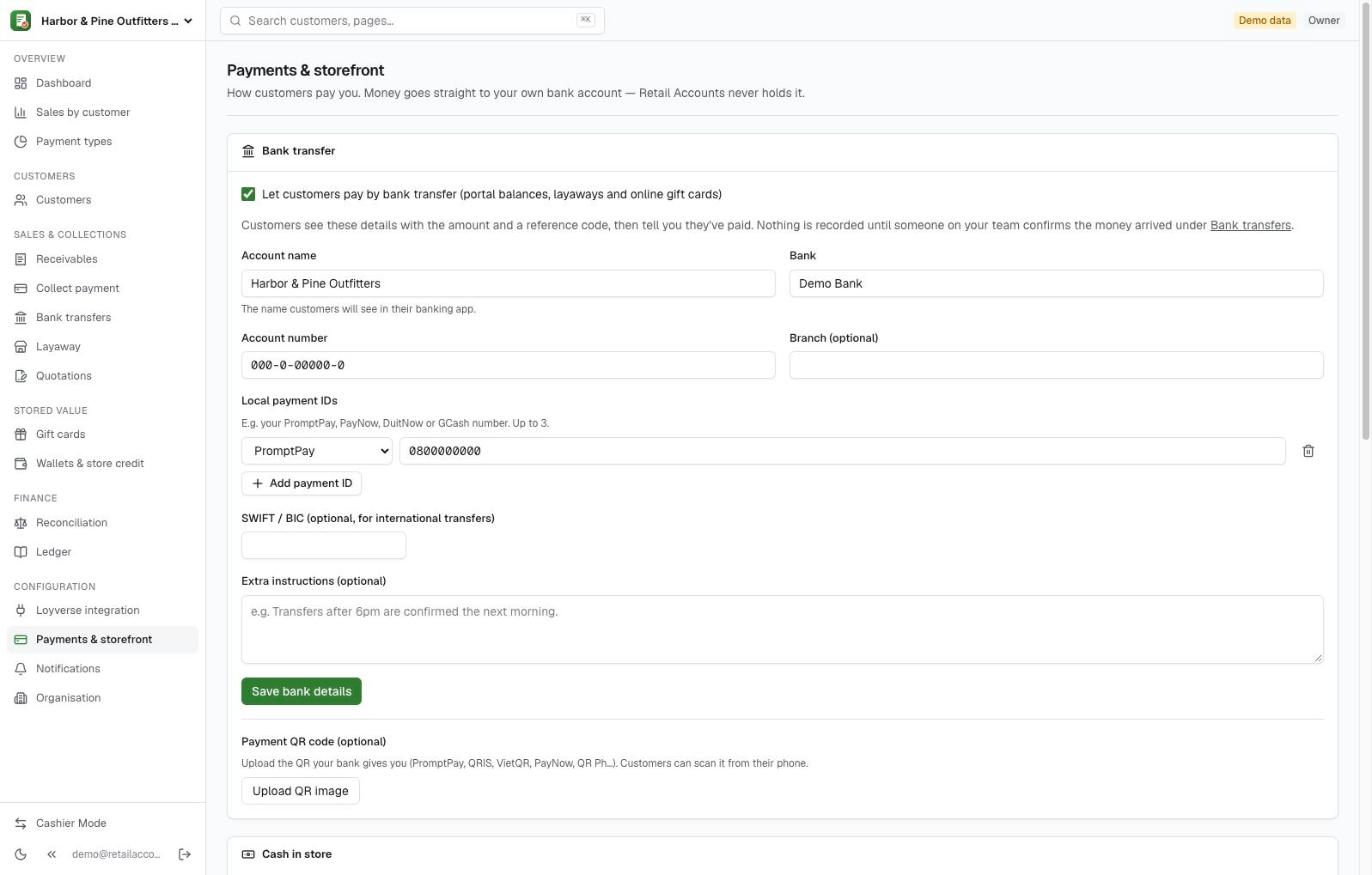
- 1Turn on bank transfer for portal balances, layaways and online gift cards.
- 2Account name, bank, account number and branch.
- 3Payment IDs — up to three: M-Pesa, MTN MoMo, Airtel Money, Orange Money, Wave, OPay, PalmPay, Moniepoint, PromptPay, PayNow, DuitNow, QRIS, VietQR, InstaPay/QR Ph, GCash, Maya, KHQR, UPI, FPS, PayPay, LINE Pay, Alipay, WeChat Pay, Pix or your own. Your country's are listed first, and if a Loyverse payment type is named after one (e.g. “M-Pesa Till”), it's pre-filled.
- 4Save bank details.
- 5Payment QR code — upload the QR code from your bank or mobile-money provider so customers can scan it.
What your customer sees
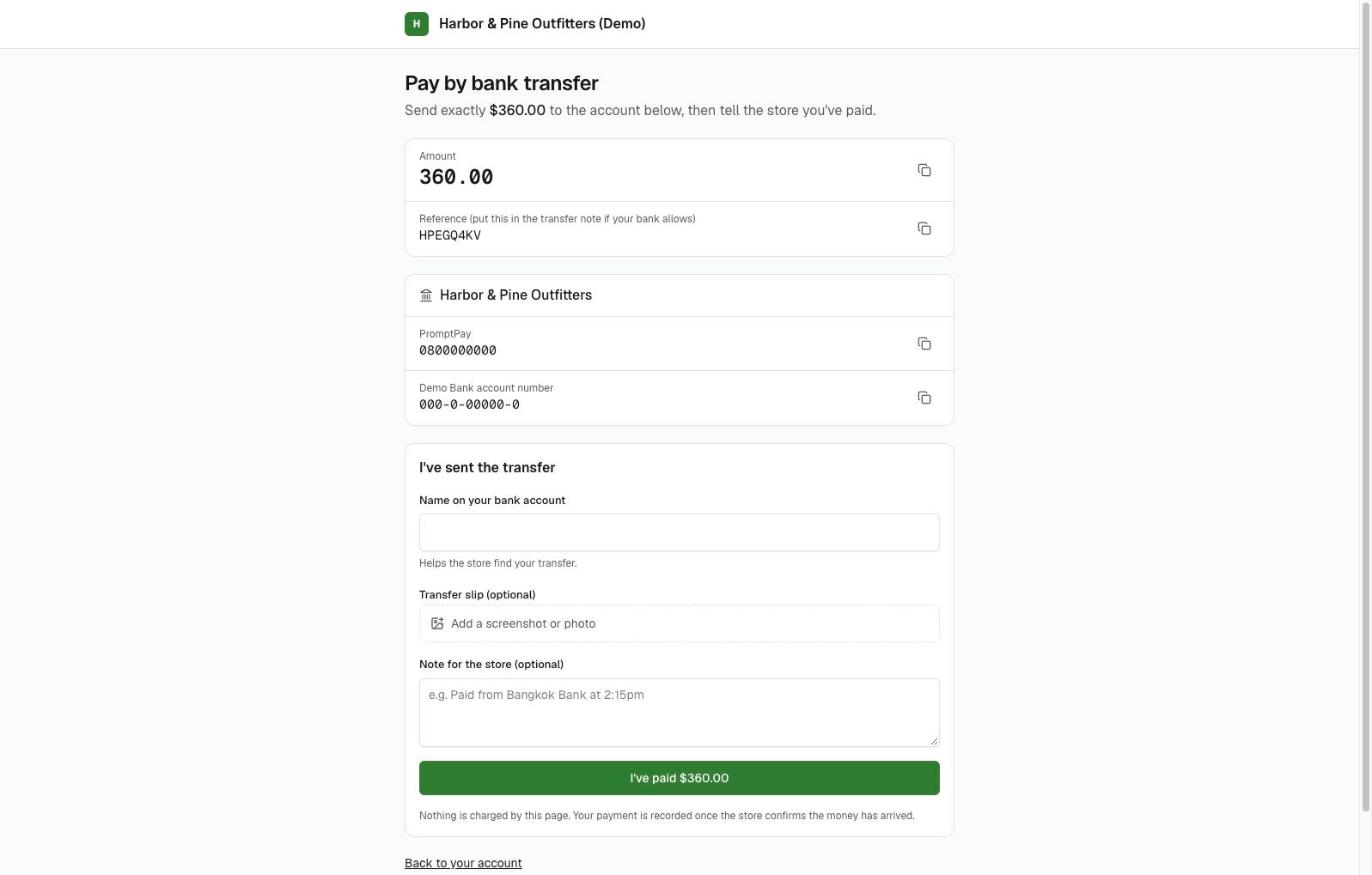
- 1The exact amount and a short reference (letters and digits only, so every banking app accepts it), with copy buttons.
- 2Your account and payment IDs, plus your QR code if uploaded.
- 3Optional transfer slip — a screenshot or photo, resized on their phone before upload.
- 4I've paid — tells you to check your account.
Confirm transfers
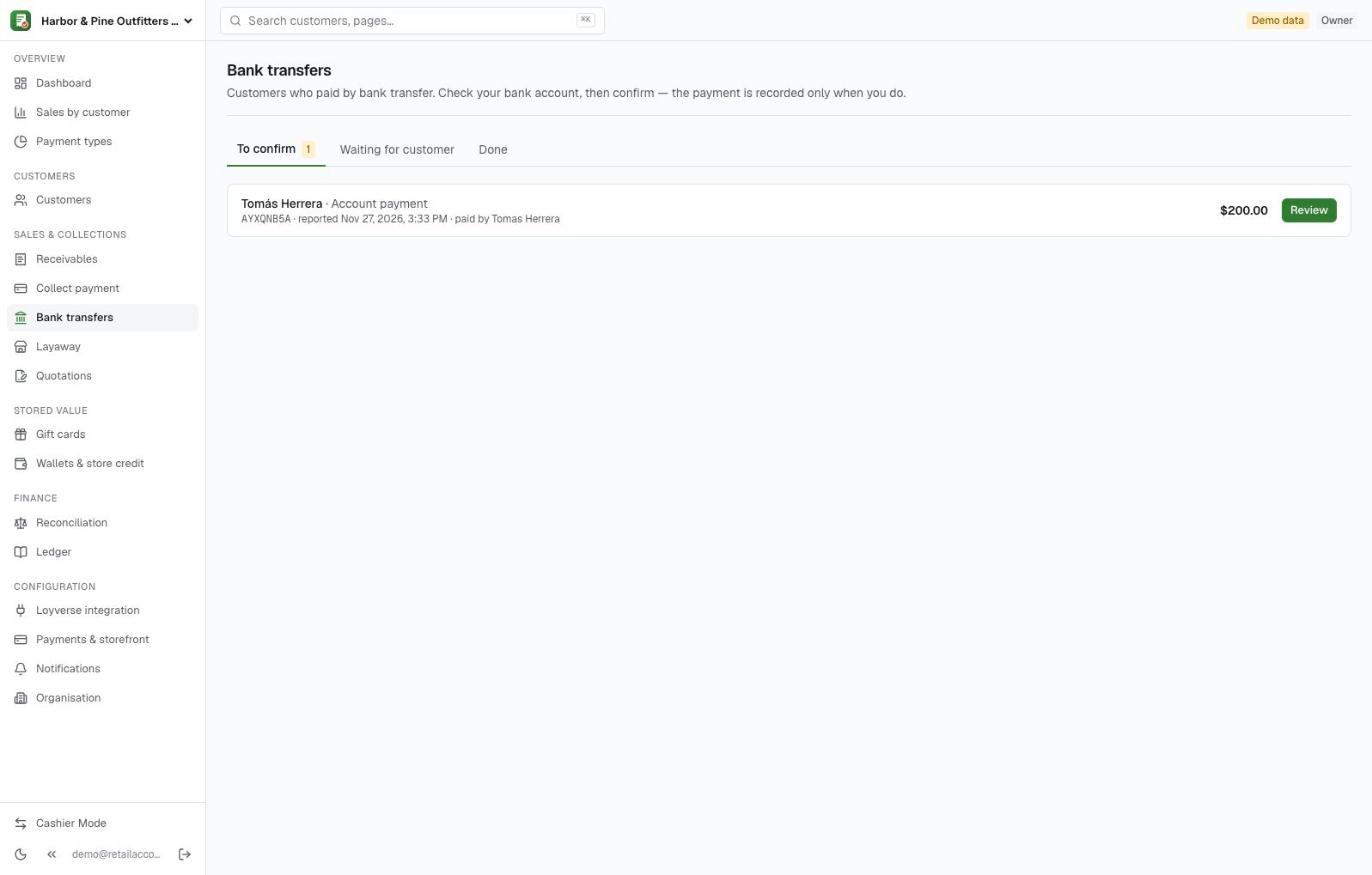
- 1To confirm (customer says they paid), Waiting for customer, and Done.
- 2Who paid, what for, the reference and when they reported it.
- 3Review to see the slip and confirm.
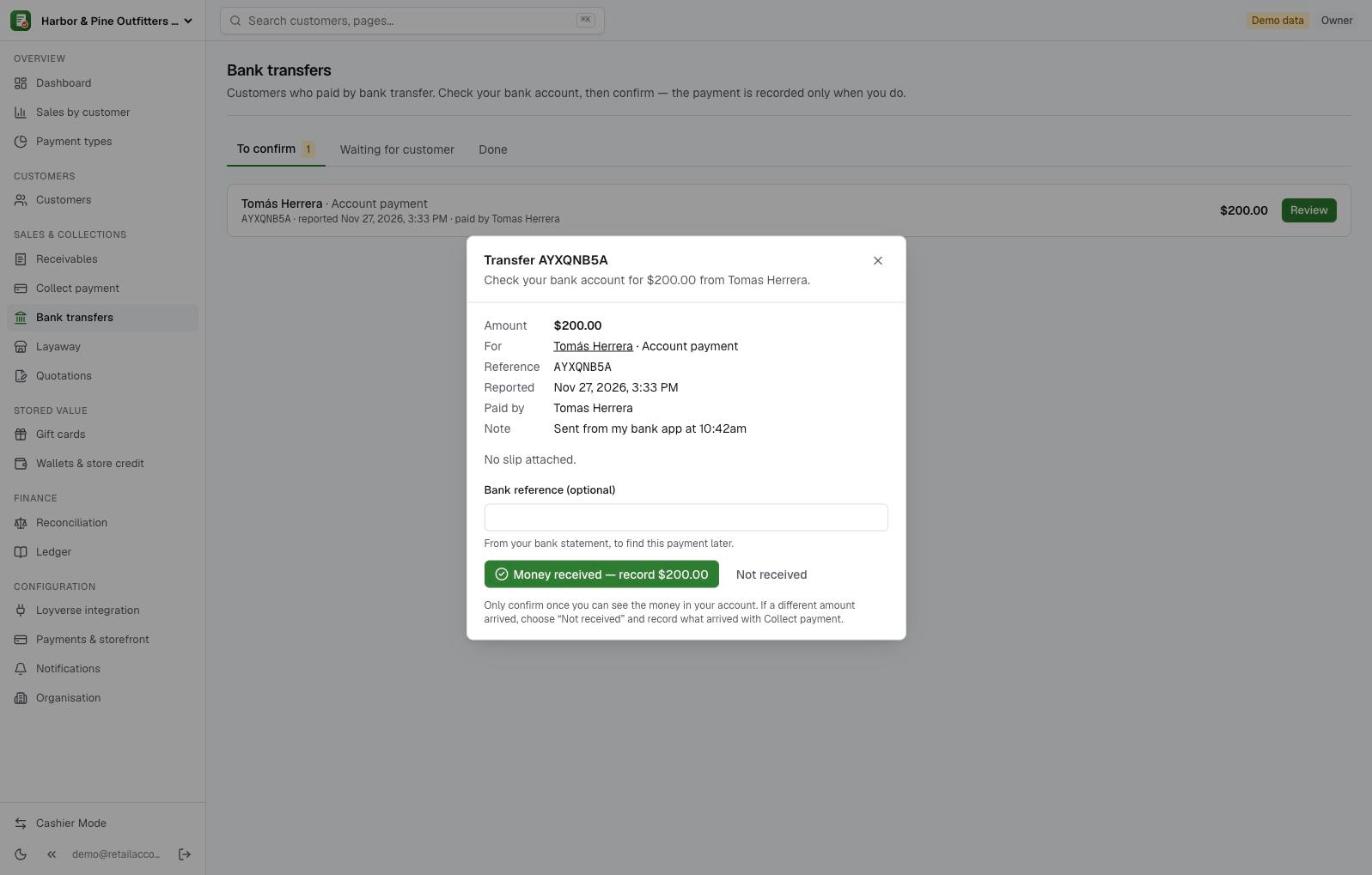
- 1Amount, customer, reference, payer name and note.
- 2Optional bank reference from your statement.
- 3Money received — records the payment once against the invoices, layaway or gift card.
- 4Not received — give a reason; the customer sees it, and an unpaid gift card is cancelled.
| Situation | What happens |
|---|---|
| Customer never reports paying | The request expires after 3 days. |
| Customer reports paying | It waits for your decision for up to 14 days. |
| A different amount arrived | Choose Not received, then record what arrived with Collect payment. |
Cash in store
On by default: the portal tells customers they can pay cash at the counter, with any instructions you add (opening hours, which counter…). Record cash with Collect payment or at the Loyverse till.
Something unclear? Tell us.