Getting started
Getting started
Create your account with Loyverse, set up your shop and take your first credit sale.
Zetliq works next to the Loyverse POS you already use. You keep ringing up sales in Loyverse; Zetliq reads your receipts, customers and payment types through the official Loyverse API and handles everything on the account side: what customers owe you, what you owe them, and how they pay.
1. Sign in with Loyverse
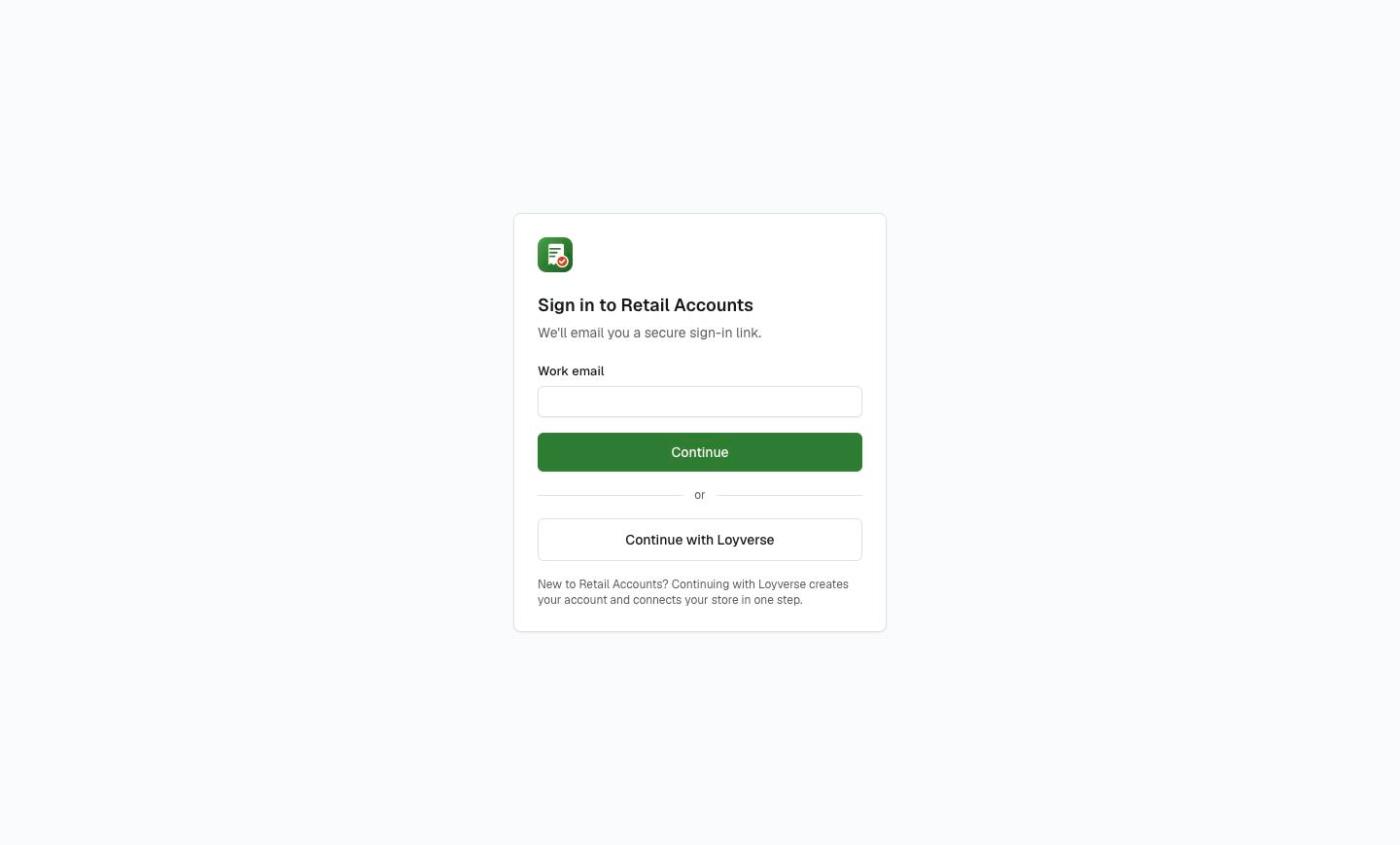
- 1Continue with Loyverse — creates your account and connects your store in one step.
- 2Staff without Loyverse access sign in with an emailed link instead — no passwords.
- 3New here? Continuing with Loyverse is all you need.
- 1Open the Zetliq sign-in page and choose Continue with Loyverse.
- 2Log in to Loyverse (if you aren't already) and approve the permissions. Zetliq asks only for what it needs — reading your store, customers, items, receipts and payment types, and writing customers and receipts.
- 3You land on a one-page setup screen. Your business name and currency come from Loyverse; confirm your time zone and choose Create.
- 4Your organisation is created and your Loyverse store is connected in the same step. The first import runs in the background within a few minutes.
Already have an account?
2. Tell Zetliq what your payment types mean
In Loyverse Back Office, create the custom payment types you need (type “Other”) — for example Customer Account, Gift Card, Wallet and Layaway Deposit. Then map them once in Loyverse integration. See Connect Loyverse.
3. Choose how customers can pay you
Add your bank details and mobile-money or payment IDs (M-Pesa, MoMo, OPay, PromptPay…) so customers can pay by transfer, and decide whether to show “pay cash in store”. See Bank transfers & cash.
4. Make your first credit sale
Turn on credit for a trusted customer, attach them to a ticket in Loyverse and pay with your Customer Account payment type. The sale appears on their account as an invoice within seconds. See Credit sales.
What next
- Fill in your business details so statements carry your letterhead.
- Check which emails go to customers and when.
- Send a customer their portal link so they can see and pay their balance.
Something unclear? Tell us.